Why projects
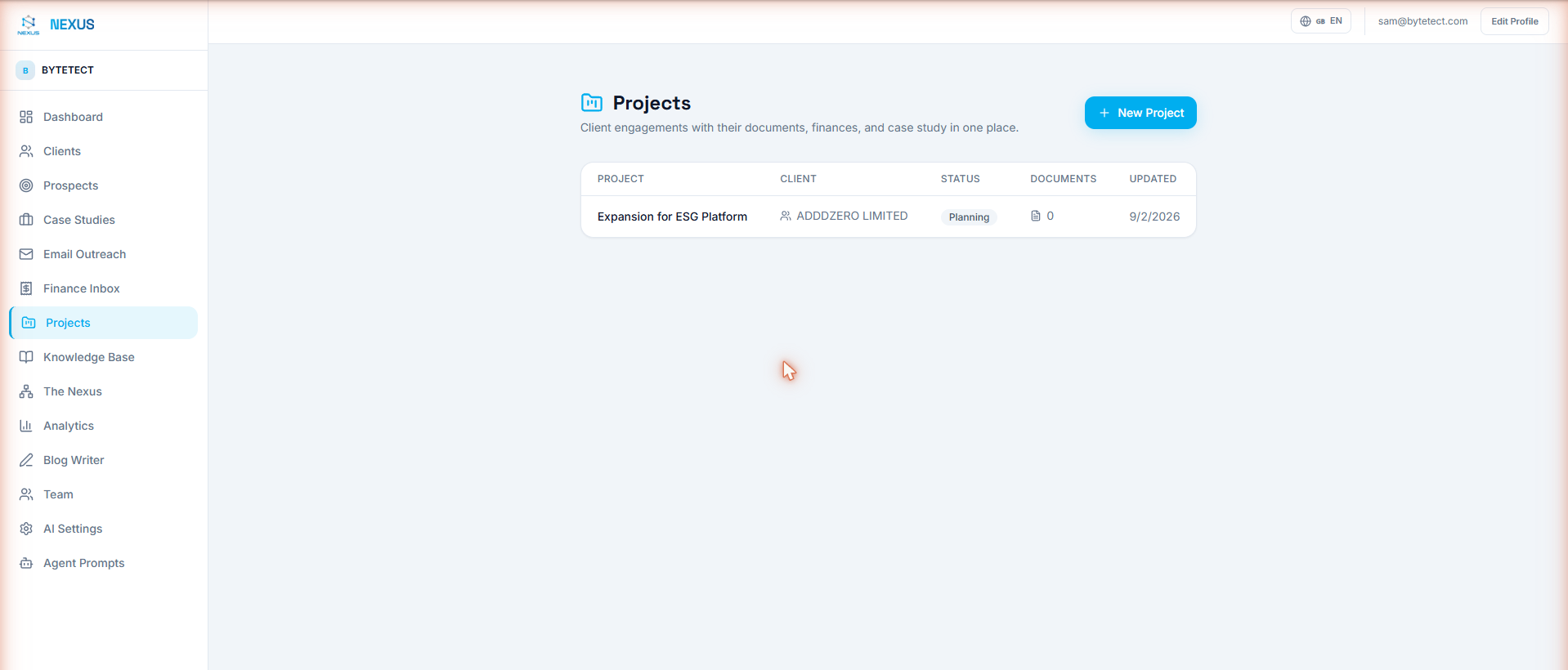
An agency’s real unit of work is the engagement: a named piece of work for a client, with its own documents, its own money, and eventually its own story. Nexus OMAS models exactly that. A project connects a client, the documents that belong to the work, the transactions that fund it, and the case-study material you’ll want when it’s done. Everything lives in one place, and the AI agents understand it as one thing.
Creating a project
Open Projects in the sidebar and click New Project. Three fields and you’re done: a name, an optional client from your CRM, and a status (planning, active, or completed). You land on the project’s page, ready to fill it.
Loading it with documents
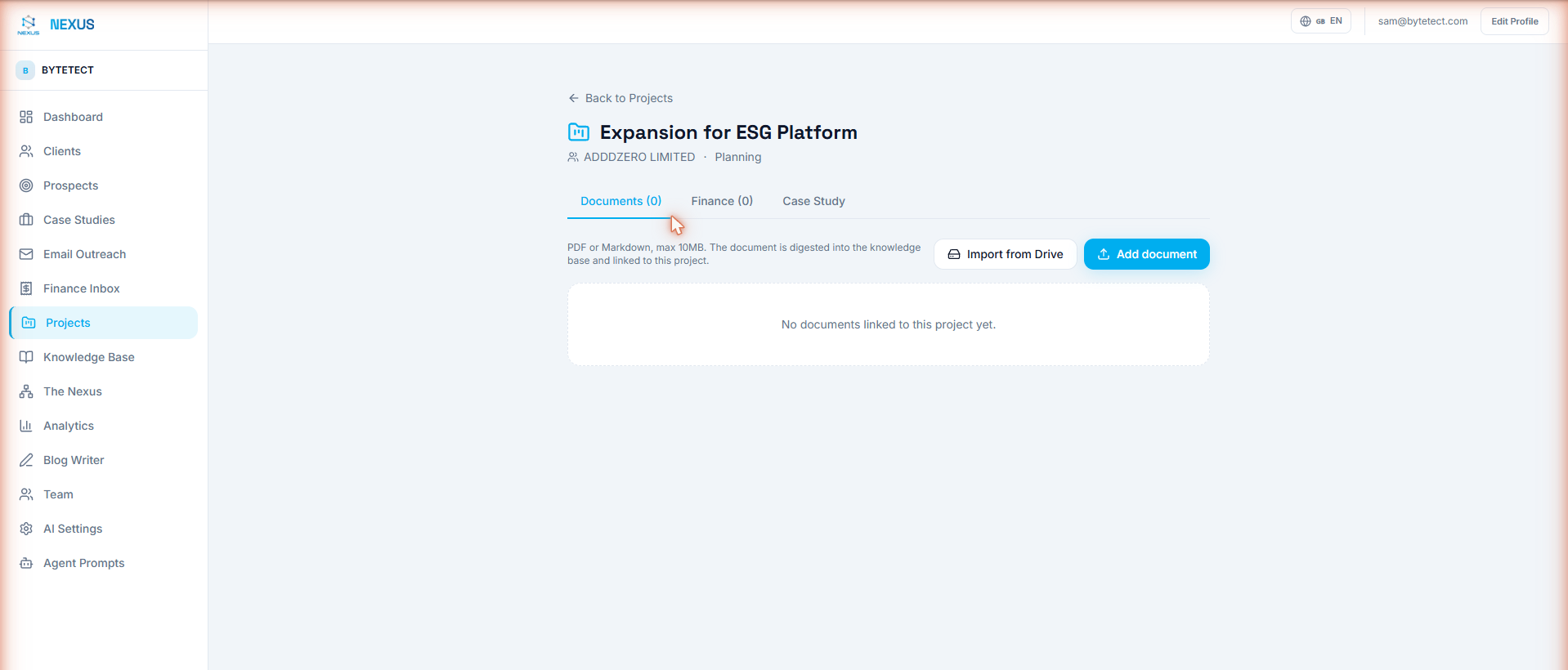
The Documents tab accepts work from four directions, all ending in the same place: the document is digested into the knowledge base and linked to the project.
- Direct upload. Add a PDF or Markdown file straight from the project page.
- Google Drive import. The Import from Drive button opens the picker with this project preselected; a whole folder, subfolders included, lands linked. See the Drive integration guide.
- Watched folders. Watch a Drive folder into the project and new files keep arriving on their own, every fifteen minutes.
- Knowledge Base digest. The digest dialog in the Knowledge Base has a Target Project selector, so documents added there can be filed into a project too.
Each document shows its digestion status (processing, ready, review) and links to its source file. In the Knowledge Base, project-linked documents wear a small chip with the project’s name.
Following the money
The Finance tab reads from the same ledger as the Financial Inbox. Link a transaction to the project from the transaction review page, and it appears here with running totals: income, expenses, net, and your expected budget side by side. That’s project profitability with no spreadsheet, and every number still traces back to a source document.
From work to case study
The Case Study tab holds the narrative fields: what was delivered, services provided, industry, key outcomes, dates, and budget. Fill them as the work progresses and the engagement documents itself; the same records power the Case Studies section of your workspace.
Projects and the AI agents
Because documents carry their project, the agents can scope themselves. Ask “what does the knowledge base say about the Acme redesign project?” and the search runs only over that project’s documents. Ask the chat to “import my Contracts folder from Drive into the Acme project” and the approval card names the target before anything runs. The project stops being a label and becomes context the AI actually uses.
Your first project in five minutes
- Open Projects and click New Project; give it a name, a client, and a status.
- On the Documents tab, upload a contract or brief, or click Import from Drive and pick the engagement’s folder.
- Optionally watch that Drive folder so future files keep arriving linked to the project.
- In the Financial Inbox, open a related transaction and link it to the project from the review page.
- Ask the chat: “summarize what we know about [your project’s name]” and watch the answer come from that project’s documents.
Frequently asked questions
Do I have to link a client?
No. Internal projects work fine without one; you can attach a client later from the Case Study tab’s edit form.
Can a document belong to several projects?
No, one project per document. If two engagements need the same reference material, keep it as general knowledge instead: unlinked documents remain searchable by everyone.
Where did the Company Library go?
Internal reference documents now live inside the Knowledge Base behind a Company library filter. Nothing was deleted; the separate page simply folded into the corpus view.
Who can create projects?
Anyone with the member role or above; the same rules as the rest of the workspace apply to editing and finance approvals.
Where to go next
If you haven’t set up your workspace yet, start with Getting Started. Then connect Google Drive, point a watched folder at your first project, and let the documents flow. All guides live in the Docs section.
Deploy Nexus OMAS in your organisation.
A 30-minute architecture briefing, we map your data landscape and tell you honestly whether OMAS is the right fit.