What the Drive integration does
Most of a company’s documents already live in Google Drive. The Nexus OMAS integration connects to your Drive with read-only access and turns those folders into working data: contracts and reports become searchable knowledge, invoices become draft transactions in the Financial Inbox, and watched folders keep both flowing without anyone uploading a file by hand.
Connecting your account
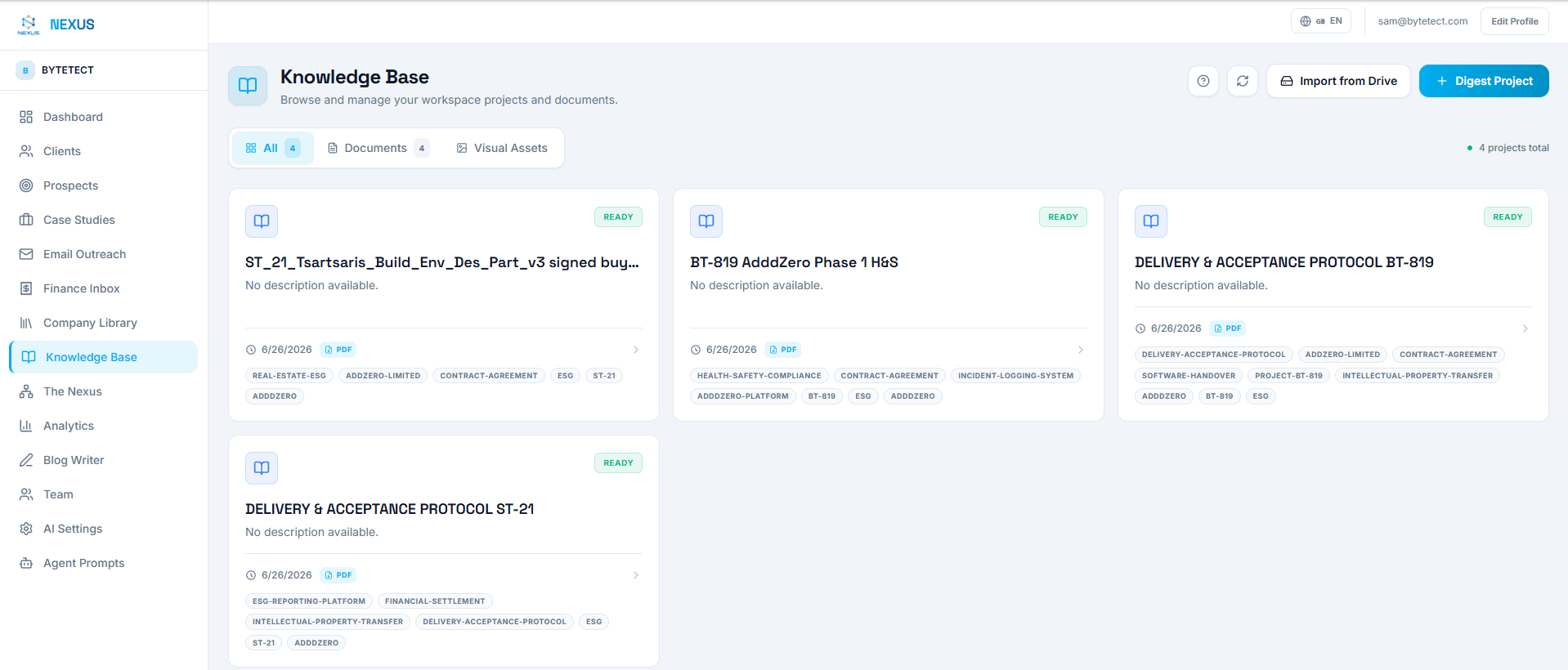
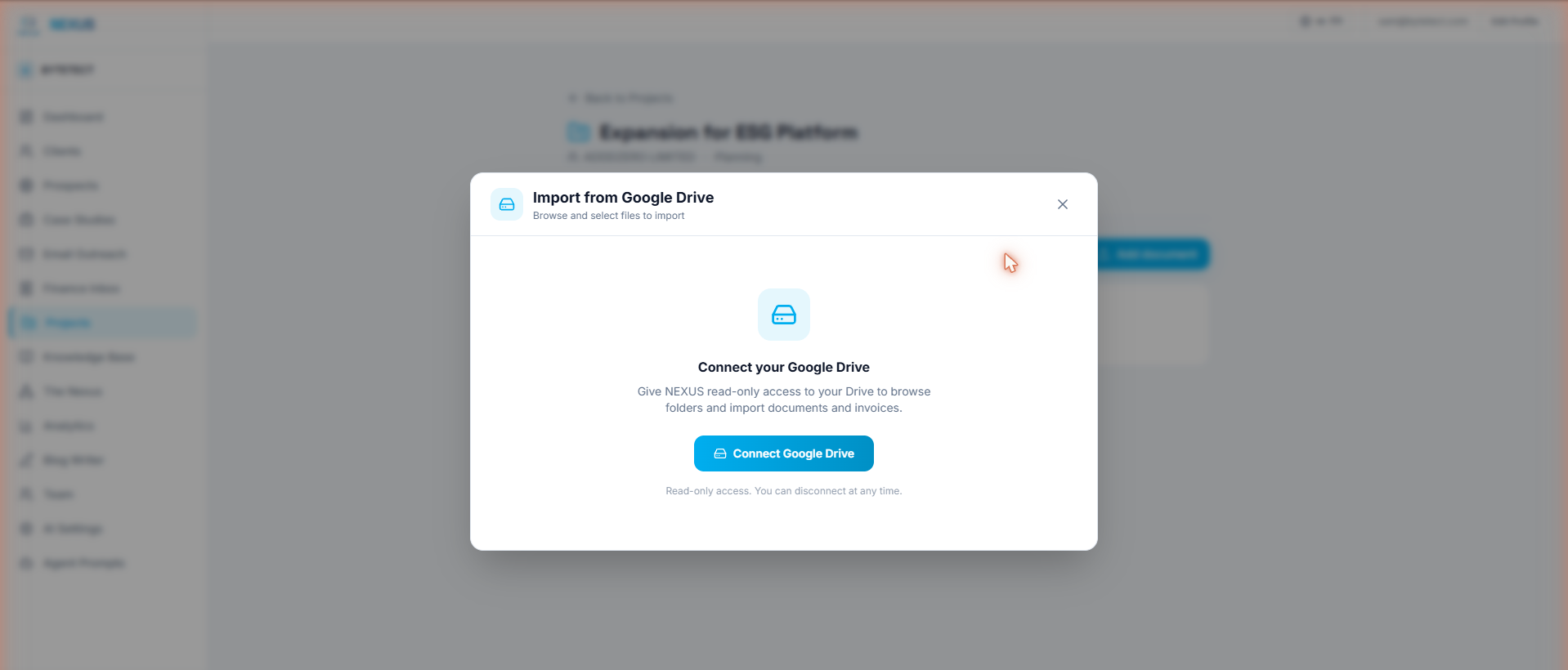
Open Knowledge Base or the Financial Inbox and click Import from Drive. The first time, you’ll see a Connect panel that sends you through Google’s standard consent screen. Two things worth knowing about that consent:
- The access is read-only. Nexus can list and read the folders you choose. It cannot modify, move, or delete anything in your Drive, ever.
- The connection is per user. Each teammate connects their own Google account, and syncs run with the token of whoever set them up.
Importing a folder
Once connected, the picker shows your Drive. Browse or search, then import a whole folder in one click. Three behaviors make this practical for real folder structures:
- Recursive by default. A folder organized as Invoices/2026/March imports everything inside, at any depth.
- Idempotent. Every imported file is remembered. Re-importing the same folder skips what was already processed, so you can re-run imports freely and never get duplicates.
- Live progress. A progress panel tracks each file: imported, pending, or failed, with the reason on failures.
Where files go depends on where you opened the picker. From the Knowledge Base, documents (PDFs, Google Docs, text, images) are digested into searchable knowledge. From the Financial Inbox, invoices and receipts run through the same AI extraction pipeline as manual uploads.
Targeting a project
For knowledge imports, the picker includes a Link documents to project selector. Choose one of your projects and every document from that folder lands already linked to it, visible in the project’s Documents tab and searchable with project scope. Opening the picker from a project page preselects that project automatically.
Watched folders: the set-and-forget mode
Importing is a one-time action. Watching is a standing arrangement: mark a folder as watched and Nexus checks it every fifteen minutes, importing anything new since the last pass. The import memory doubles as the diff engine, so each sync only touches files it has never seen.
This is the piece that removes manual work entirely. Point a watch at the folder where your accountant drops invoices, or where your team saves client deliverables, and the system stays current on its own. Watches appear in a panel inside the picker, each showing its destination, last check time, and any error, with a manual sync button when you don’t want to wait for the next cycle.
A watched knowledge folder can also carry a target project, so a folder like Acme/Deliverables keeps filing new documents into the Acme project forever.
Asking the agents to do it
The integration is wired into chat. Say “import my ‘Invoices 2026’ folder from Drive” and the agent finds the folder by name, shows you an approval card with the folder, the destination, and the target project if you named one, and starts the import only after you approve. Nothing is imported without that explicit yes.
Set it up in five steps
- Open the Knowledge Base or the Financial Inbox and click Import from Drive.
- Click Connect Google Drive and approve the read-only consent with your Google account.
- Browse or search to the folder you want, and pick a target project if the documents belong to one.
- Click Import this folder for a one-time import, or the watch toggle to keep it synced every fifteen minutes.
- Watch the progress panel; imported documents appear in the Knowledge Base or as draft transactions in the Financial Inbox.
Frequently asked questions
Which file types are supported?
Knowledge imports handle PDFs, Google Docs, Sheets and Slides (exported automatically), Markdown and text files, and images. Finance imports accept PDF, JPEG, PNG, and WEBP. Files over the size limit are skipped and reported, never silently dropped.
Do shared drives work?
Yes. Listings include shared drives your Google account can access.
What happens if a sync fails?
The watch records the error and shows it in the watched-folders panel. The next cycle retries automatically, and rate limits are handled with backoff.
Can I disconnect?
Yes, from the picker’s connection panel. Disconnecting revokes the token; already-imported content stays in Nexus.
Does clearing the Financial Inbox affect Drive?
Clearing finance data also resets the finance import memory, so a re-import or the next watch sync ingests the folder from scratch. Your Drive files themselves are never touched.
Where to go next
New to Nexus? Start with the Getting Started guide. To see what happens to imported invoices, read the Financial Inbox deep dive, or browse all guides in the Docs section.
Deploy Nexus OMAS in your organisation.
A 30-minute architecture briefing, we map your data landscape and tell you honestly whether OMAS is the right fit.