What you’ll set up
This guide walks you from a fresh account to a working workspace: creating your organization, inviting teammates with the right roles, connecting Google Drive, and letting the AI agents process your first documents. Expect it to take about fifteen minutes.
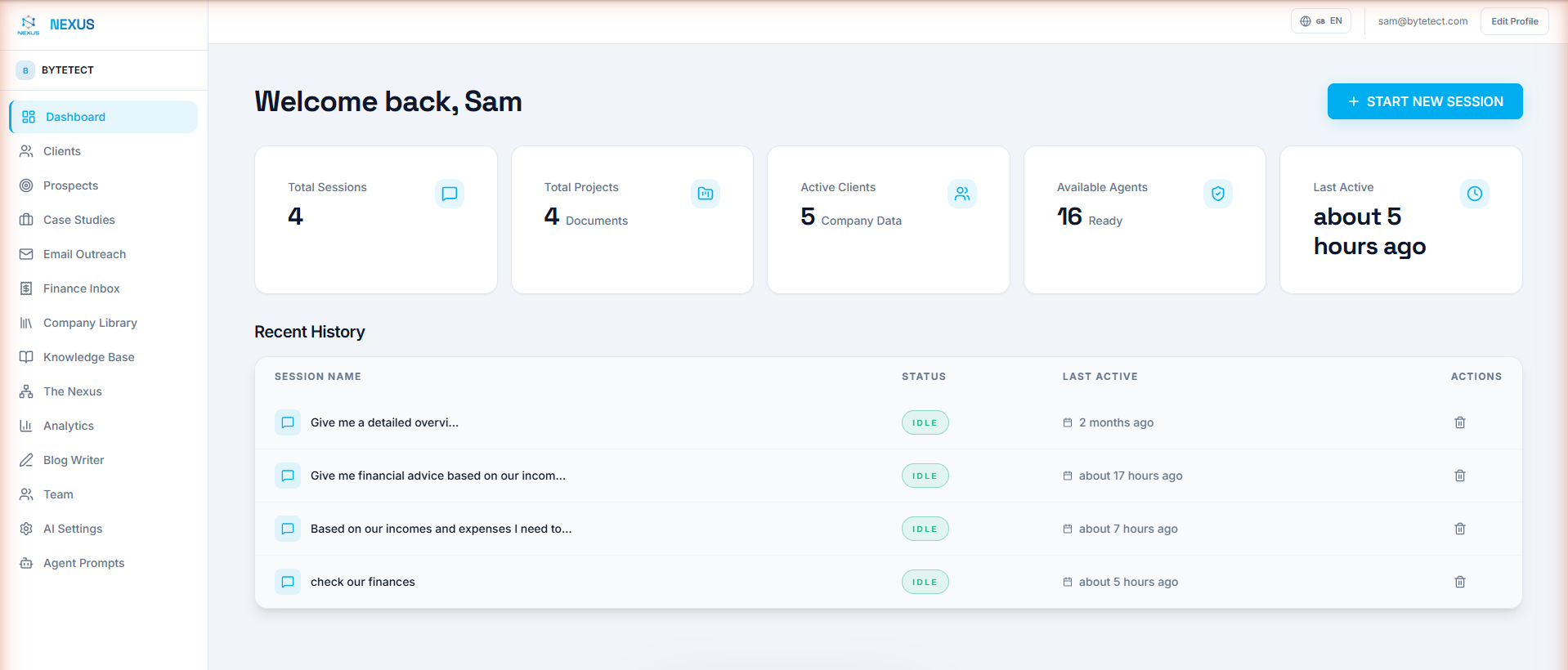
1. Create your account and workspace
Go to nexus.bytetect.com and sign up with your work email. You’ll receive a verification email. Click its link, then continue in the onboarding wizard: choose Create a workspace, name your organization, and pick your industry. You become the workspace owner.
If a colleague invited you instead, open the invitation link from your email. After verifying your address you’ll join their workspace automatically with the role they assigned.
2. Invite your team
Open Settings → Team. Enter a teammate’s email, pick a role, and send the invite. Nexus uses five roles, each inheriting the previous one’s abilities:
- Viewer: read-only access to the workspace.
- Member: day-to-day work with clients, knowledge, outreach, and chat with the agents.
- Manager: approvals, including finance approvals, bulk outreach, and publishing.
- Admin: team management, AI settings, agent prompts, and the audit log.
- Owner: billing and workspace-level control.
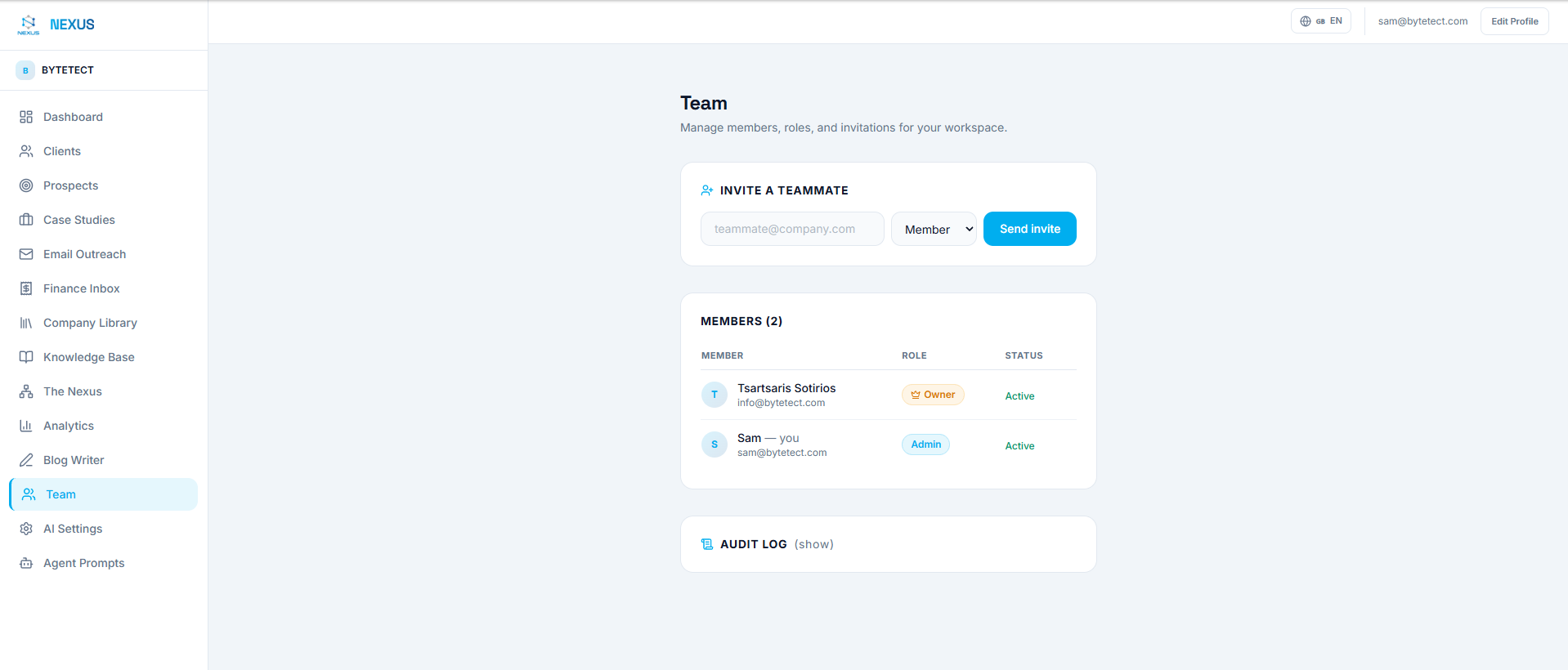
When you send an invite the direct link is also copied to your clipboard, so you can share it over chat if email is slow.
3. Connect Google Drive
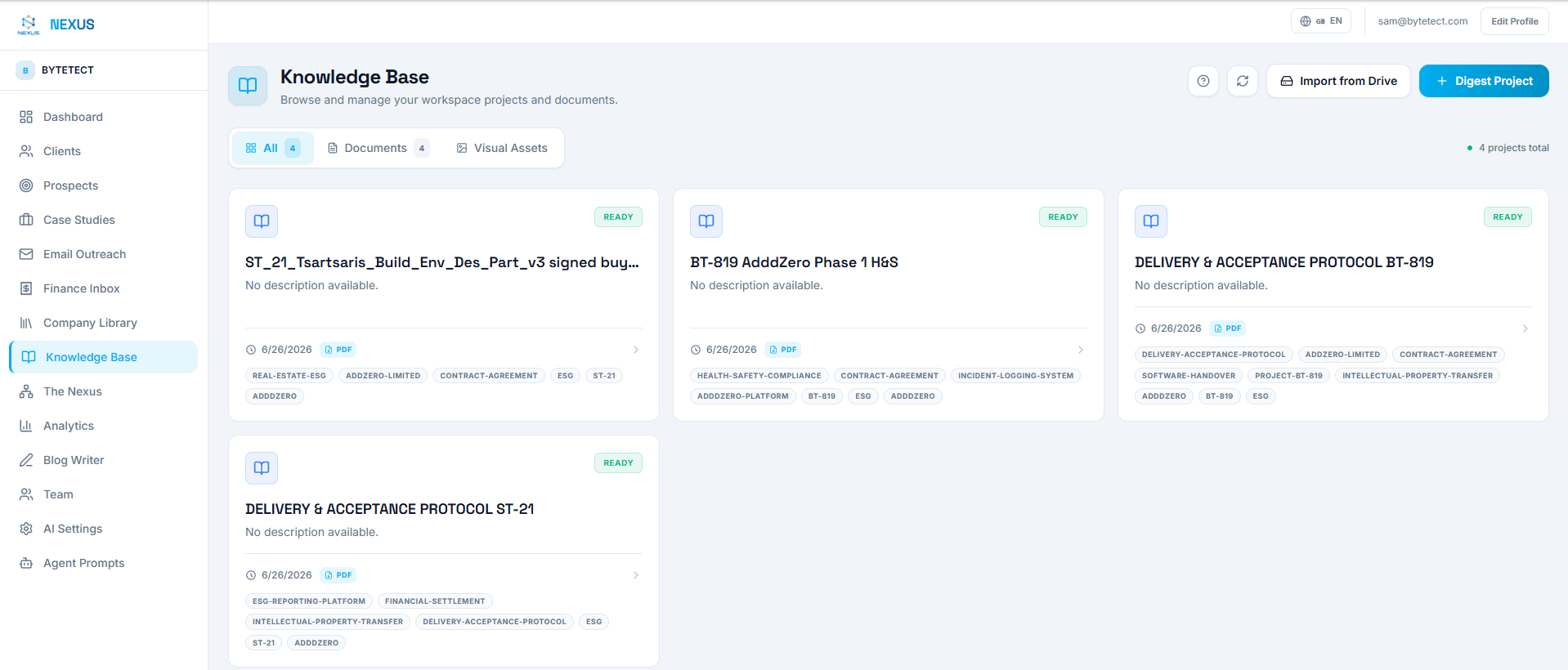
In Knowledge or the Financial Inbox, choose Import from Drive and connect your Google account with read-only access. You can then:
- Import a folder, subfolders included, into the knowledge base or the invoice pipeline.
- Watch a folder so new files sync automatically every fifteen minutes.
4. Let the agents work
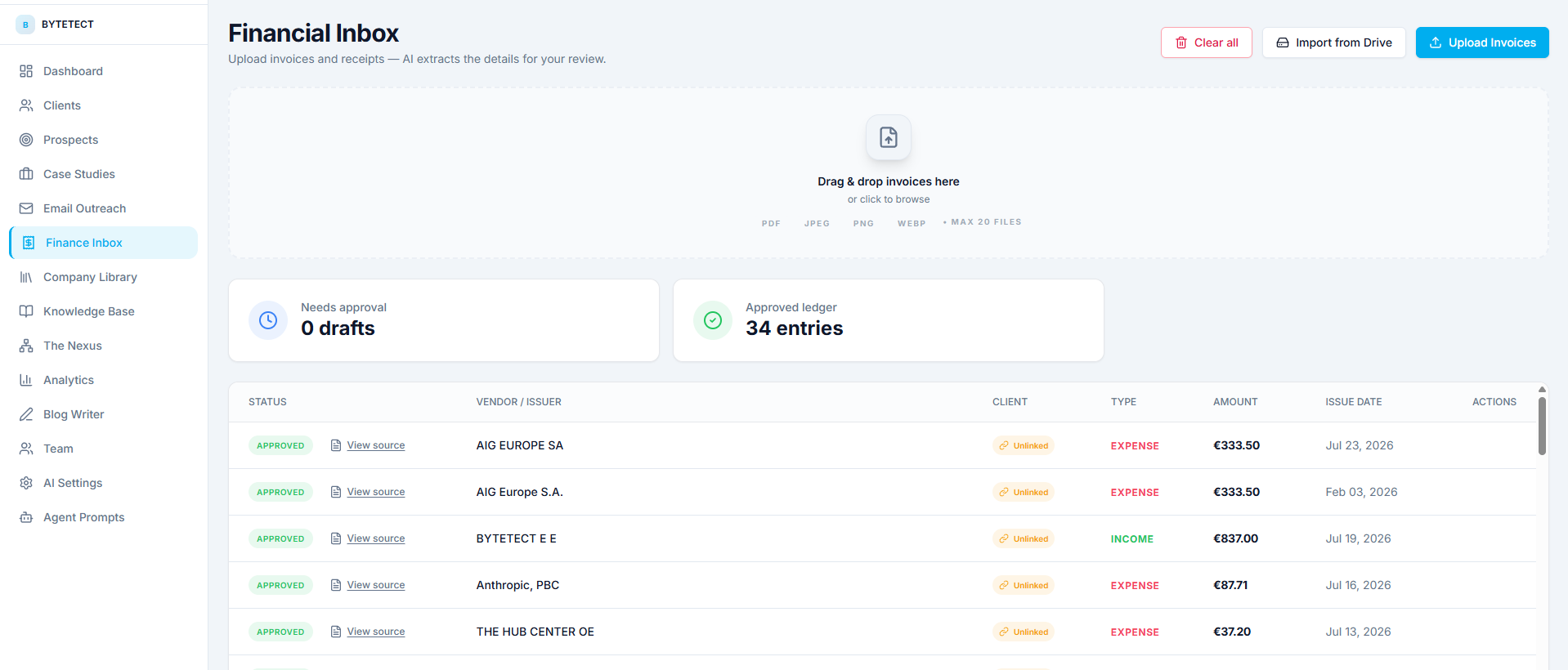
Drop invoices into the Financial Inbox (or let a watched Drive folder feed it) and the extraction agent turns each document into a draft transaction with vendor, amount, dates, and linked client, ready for a manager’s one-click approval. Documents added to Knowledge become searchable context that every agent can draw on.
Then open Chat and ask for something real: “Summarize this month’s expenses”, “Draft an outreach email to our dormant clients”, “What does our knowledge base say about project X?”. Actions with consequences, such as sending email, publishing, or importing folders, pause for your explicit approval in the chat before anything happens.
Quick-start checklist
- Sign up at nexus.bytetect.com and verify your email.
- Create your workspace, or accept a teammate’s invitation.
- Invite your team from Settings → Team with the right roles.
- Connect Google Drive and pick or watch your documents folder.
- Upload a first invoice to the Financial Inbox and approve the draft.
- Open Chat and ask the agents a real question about your data.
Frequently asked questions
Do I need to verify my email before using Nexus?
Yes. Password sign-ups must confirm their address before the workspace is created. Invitation links also require a verified address, which proves the invite reached its intended owner.
Who can invite new members?
Admins and owners manage invitations and members. Invitations are bound to the invited email address and expire after a set period.
Is the Google Drive connection allowed to change my files?
No. Nexus asks for read-only access. It can list and read the folders you choose, and it never modifies or deletes anything in your Drive.
Can the AI agents act without my approval?
Reading and analysis happen freely, but any action with consequences, like sending an email or importing a folder, pauses in the chat until you explicitly approve it.
Where to go next
Explore Settings → Agent Prompts to tune how the agents write and reason for your business, and check the audit log under Team settings to see everything that happens in your workspace. When you are ready to put real paperwork through the system, continue with the Financial Inbox deep dive, or browse all guides in the Docs section.
Deploy Nexus OMAS in your organisation.
A 30-minute architecture briefing, we map your data landscape and tell you honestly whether OMAS is the right fit.